Fastest TM APN Setting 2027: Best APN For Android, iPhone And Gaming Guide
Fastest TM APN Setting. If your TM internet is slow, not working, or disconnects, incorrect APN settings are usually the main reason. Many users face problems like buffering videos, high ping in games, delayed messages or mobile data errors because their phone is not properly connected to the TM network.
The APN or Access Point Name, works like a bridge between your device and TM’s 4G or 5G internet service. When APN is set correctly, your connection becomes faster, smoother and more stable.
In this guide, you’ll find the fastest TM APN settings for 2027 including Android and iPhone configuration, gaming setup, reset methods and troubleshooting tips to boost your internet speed easily.

What is APN And Why It Is Important?
APN means Access Point Name. Let’s understand this in a very simple way. Imagine your house has a main gate. If the gate is locked, guests cannot enter. If the gate is open and correct, everything works smoothly. APN works like that gate.
It connects your phone to TM’s internet network. If APN is wrong, your phone cannot talk properly to the TM server. Because of that:
- Internet becomes slow
- Mobile data may not work
- Apps fail to connect
- Games disconnect
- Videos buffer
Correct APN tells your phone:
- Which network to use
- Which server to connect
- What type of connection (4G, LTE, 5G)
That is why correct TM APN settings are very important in 2027.
Read Also: How To Activate TM SIM Card
Why TM Internet Becomes Slow
Before fixing, you should understand the problem. Here are common reasons:
- Wrong APN settings
- Weak signal in your area
- SIM not registered properly
- Too many background apps
- Network congestion during peak hours
- Outdated phone software
In most cases, fixing APN solves the issue instantly.

TM APN Settings For Android (2027)
If you are using Android and facing slow internet, follow these steps carefully.
How to Set TM APN on Android
- Go to your phone and open Settings.
- Find and tap Connections or Network & Internet. The name may be slightly different on some phones.
- Choose Mobile Network from the list.
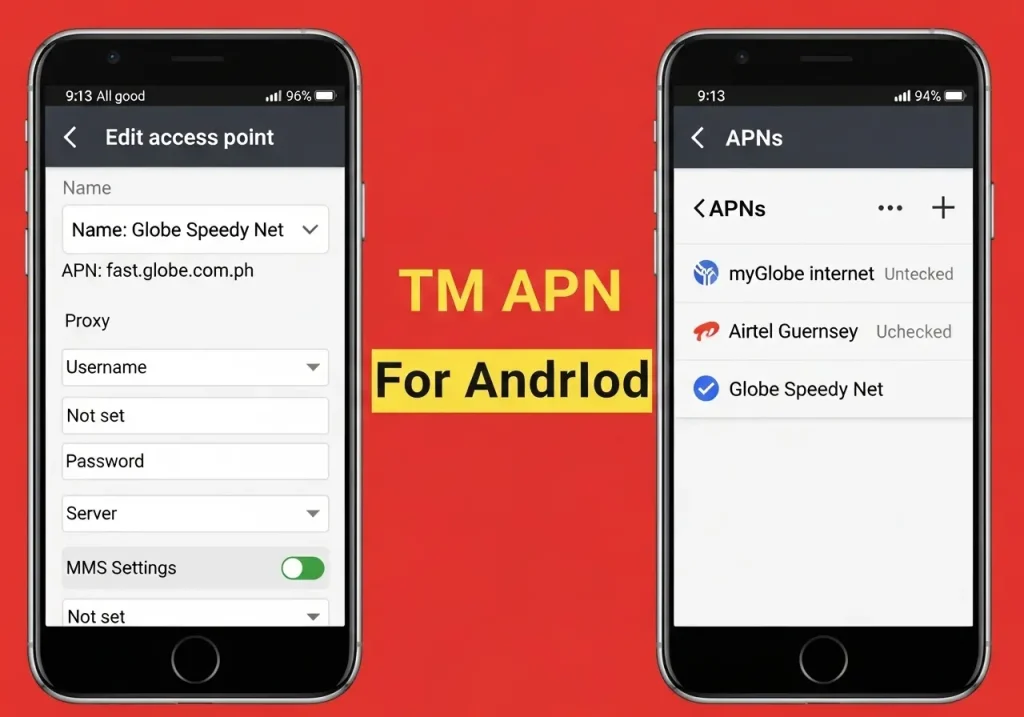
- Now tap Access Point Names (APN).
- Look for the + sign or Add button and press it to create a new APN.
- Carefully type all the required APN details in the correct fields.
- After entering everything, tap Save.
- Finally, restart your phone so the new settings can start working properly.
Read Also: TM SIM Deactivation In Philippines
TM Default APN Settings For Android
If your TM mobile data is not working properly on Android, you can manually enter the official default APN settings below. Make sure you type the values exactly as shown. Even a small mistake can stop your internet connection.
| Setting Name | Required Value |
|---|---|
| APN Profile Name | TM Internet |
| APN | internet.globe.com.ph |
| Proxy | Leave blank |
| Port | Leave blank |
| Username | Leave blank |
| Password | Leave blank |
| Server | Leave blank |
| MMSC | Leave blank |
| MMS Proxy | Leave blank |
| MMS Port | Leave blank |
| MCC | 515 |
| MNC | 03 |
| Authentication Type | None |
| APN Type | default,supl |
| APN Protocol | IPv4 |
| APN Roaming Protocol | IPv4 |
| Bearer | Unspecified |
| MVNO Type | None |
| MVNO Value | Leave blank |
After entering these details, tap Save and restart your Android phone to apply the new configuration.
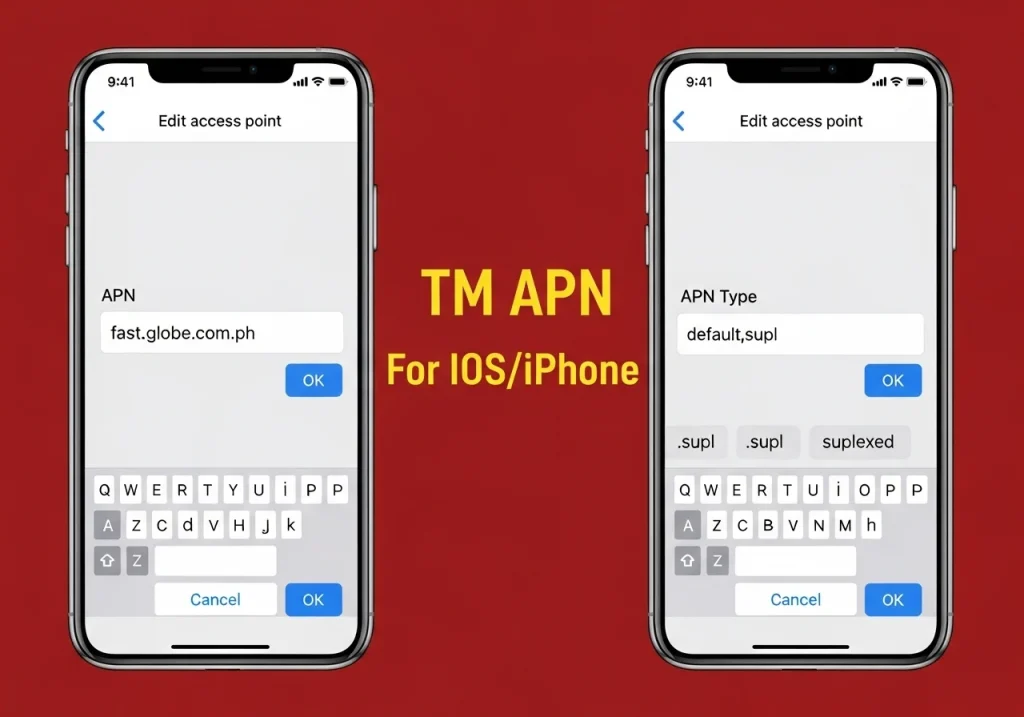
TM APN Settings For iPhone (iOS 2027)
If your iPhone mobile data is not working, follow these steps.
How to Configure TM APN On iPhone
- First, unlock your iPhone and open the Settings app.
- Scroll down and tap on Mobile Data.
- Now select Mobile Data Options.
- After that, tap on Mobile Data Network.
- In the APN section, carefully type the required APN details.
- Keep the Username and Password fields empty. Do not enter anything there.
- Once you finish entering the details, tap the Back button. This will save your settings automatically.
- Finally, restart your iPhone so the new APN settings can fully activate.
After restarting, your TM mobile data should work smoothly and connect properly to the network.
Read Also: How To Pasaload In TM
TM Default APN Settings For iPhone
If you are using an iPhone and your TM mobile data is not working properly, you can manually enter the default APN values below. Make sure you type everything exactly as shown.

| Setting Field | Required Value |
|---|---|
| Name | TM Internet |
| APN | internet.globe.com.ph |
| Username | Leave blank |
| Password | Leave blank |
| MMSC | Not set (only required for MMS configuration) |
| MMS Proxy | Leave blank |
| MMS Port | Leave blank |
| MCC | 515 |
| MNC | 03 |
| APN Type | default,supl |
| APN Protocol | IPv4 |
| APN Roaming Protocol | IPv4 |
After entering these values:
- Go back to save the settings.
- Restart your iPhone.
Your TM internet connection should now work smoothly with stable LTE or 5G performance.
Best TM APN Setting For Fast Internet in 2027
Default APN works fine for most users. But if you want better performance for streaming and downloads, use this optimized version.
TM Fast Internet APN
| Field | Value |
|---|---|
| Name | TM Fast Internet |
| APN | internet.globe.com.ph |
| Proxy | Not Set |
| Port | Not Set |
| Username | Not Set |
| Password | Not Set |
| Server | Not Set |
| MMSC | Not Set |
| MMS Proxy | Not Set |
| MMS Port | Not Set |
| MCC | 515 |
| MNC | 03 |
| Authentication Type | None |
| APN Type | default,supl |
| APN Protocol | IPv4 |
| APN Roaming Protocol | IPv4 |
| Bearer | LTE/5G |
| MVNO Type | None |
This gives:
- Faster browsing
- Smooth YouTube streaming
- Stable video calls
- Better download speed
TM Gaming APN Settings (Low Ping 2027)
If you play online games, you need stable and low ping connection. Use this configuration.
TM Gaming APN
| Field | Value |
|---|---|
| Name | TM Gaming |
| APN | http.globe.com.ph |
| Proxy | 203.177.42.214 |
| Port | 8080 |
| Username | Leave blank |
| Password | Leave blank |
| MCC | 515 |
| MNC | 03 |
| APN Type | default,supl |
| APN Protocol | IPv4 |
| Bearer | LTE/5G |
This setup helps reduce lag in:
- Mobile Legends
- CODM
- PUBG Mobile
After saving, restart your phone.
Read Also: TM EZ70 Promo Guide
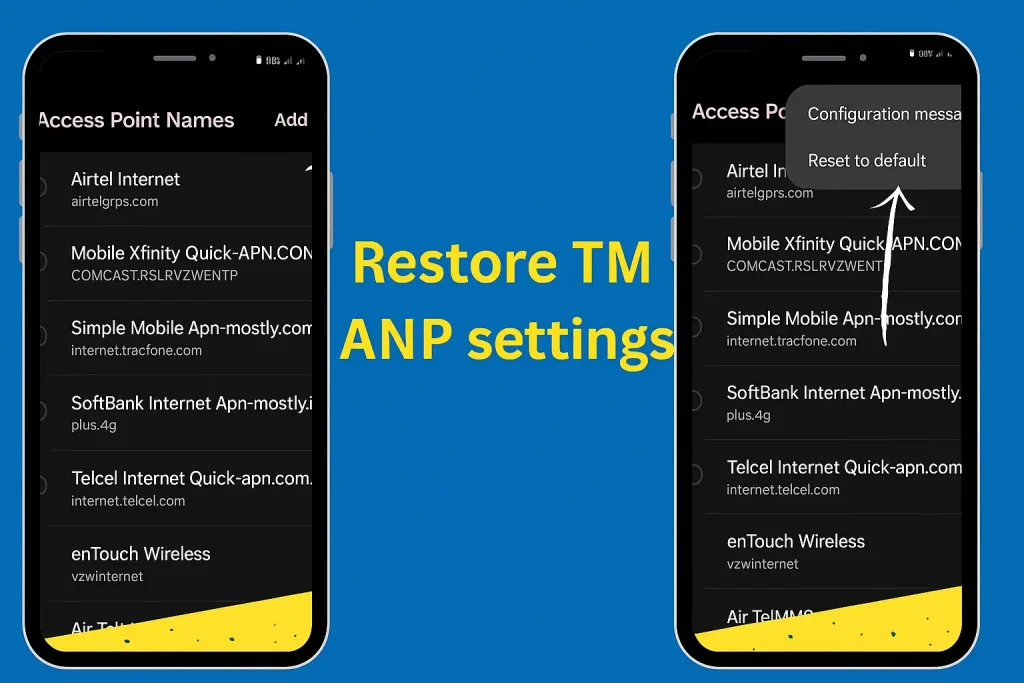
How To Reset TM APN Settings
If you entered wrong values and internet stopped working, reset to default.
Reset TM APN on Android
- Open your Settings app.
- Tap on Network & Internet.
- Select Mobile Network.
- Choose Access Point Names (APN).
- Tap the three dots in the top right corner.
- Select Reset to default.
- Restart your phone.
Reset TM APN on iPhone
- Open Settings.
- Go to General.
- Tap Transfer or Reset iPhone.
- Select Reset.
- Tap Reset Network Settings.
- Enter your passcode if asked.
- Your iPhone will restart automatically.

Tip: Restarting your iPhone refreshes the network and resets the TM APN settings. This often fixes slow internet and mobile data problems quickly.
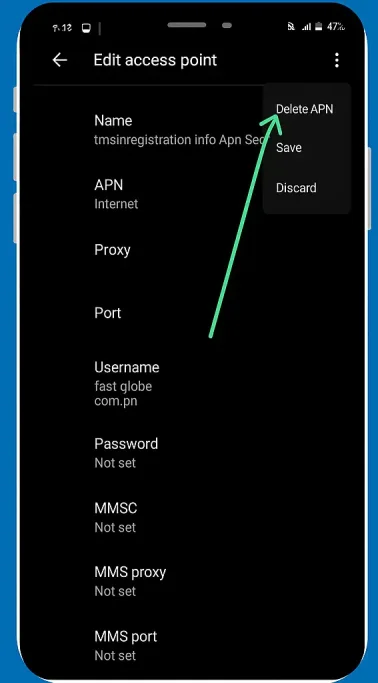
How To Delete TM APN
If you want to delete your current TM APN, follow these easy steps:
- First, open the Settings app on your phone.
- Go to Mobile Network or Network & Internet (it depends on your phone model).
- Tap on Access Point Names (APN) to see the saved APN list.
- Choose the TM APN you want to remove.
- Tap the three dots (⋮) at the top right corner.
- Select Delete from the menu.
- Confirm your action.
After this, the selected TM APN will be removed from your device.
Best TM APN Settings For Fast Internet And Gaming (2027)
If your TM internet feels slow, unstable, or games are lagging, adjusting the APN settings can improve performance. The default setup works for normal users. But if you want faster browsing, smoother streaming, and better gaming response, you can use an optimized configuration.
Below are the recommended TM APN settings for fast internet and low-ping gaming in 2027.
TM Fast Internet APN (High Speed Setup)
This configuration is best for daily use like YouTube, Facebook, TikTok, downloads and video calls.
| Field | Value |
|---|---|
| Name | TM Fast Internet |
| APN | internet.globe.com.ph |
| Proxy | Not Set |
| Port | Not Set |
| Username | Not Set |
| Password | Not Set |
| Server | Not Set |
| MMSC | Not Set |
| MMS Proxy | Not Set |
| MMS Port | Not Set |
| MCC | 515 |
| MNC | 03 |
| Authentication Type | None |
| APN Type | default,supl |
| APN Protocol | IPv4 |
| APN Roaming Protocol | IPv4 |
| Bearer | LTE/5G |
| MVNO Type | None |
This setup helps improve:
- Download speed
- Video streaming quality
- App loading time
- Overall browsing stability
TM Gaming APN (Low Ping Configuration)
If you play online games, ping matters a lot. High ping causes delay. Low ping gives smooth control and faster response. Use this setup for better gaming performance.
| Field | Value |
|---|---|
| Name | TM Gaming |
| APN | http.globe.com.ph |
| Proxy | 203.177.42.214 |
| Port | 8080 |
| Username | Leave blank |
| Password | Leave blank |
| MCC | 515 |
| MNC | 03 |
| APN Type | default,supl |
| APN Protocol | IPv4 |
| Bearer | LTE/5G |
This configuration can reduce lag in games like:
- Mobile Legends
- Call of Duty Mobile (CODM)
- PUBG Mobile
It also improves social media loading and browsing smoothness. After entering these values, always save the APN and restart your phone to apply the changes properly.
Read Also: TM SIM Replacement With Same Number
Globe APN Settings ( Configuration Guide)

If your Globe mobile data is not working or internet is slow, you may need to set the correct APN values. Below are the complete and properly organized Globe APN configurations. Just copy the values exactly as shown.
1. MyGlobe Internet APN Settings
Use this setup for normal browsing, social media, streaming, and daily internet use.
| Field | Value |
|---|---|
| APN Name | myGlobe Internet |
| APN | internet.globe.com.ph |
| Proxy | Not Set |
| Port | Not Set |
| Username | Not Set |
| Password | Not Set |
| Server | Not Set |
| MMSC | Not Set |
| MMS Proxy | Not Set |
| MMS Port | Not Set |
| MCC | 515 |
| MNC | 03 |
| Authentication Type | Not Set |
| APN Type | default,supl |
| APN Protocol | IPv4 |
| APN Roaming Protocol | IPv4 |
| Bearer | Not Specified |
| MVNO Type | None |
| MVNO Value | Not Set |
This configuration is best for regular mobile data usage.
2. MyGlobe INET APN Settings
This is an alternative internet configuration. If the first one does not work properly, try this setup.
| Field | Value |
|---|---|
| APN Name | myGlobe INET |
| APN | http.globe.com.ph |
| Proxy | Not Set |
| Port | Not Set |
| Username | Not Set |
| Password | Not Set |
| Server | Not Set |
| MMSC | Not Set |
| MMS Proxy | Not Set |
| MMS Port | Not Set |
| MCC | 515 |
| MNC | 03 |
| Authentication Type | Not Set |
| APN Type | default,supl |
| APN Protocol | IPv4 |
| APN Roaming Protocol | IPv4 |
| Bearer | Not Specified |
| MVNO Type | None |
| MVNO Value | Not Set |
Use this if you face slow internet or connection errors with the main APN.
3. MyGlobe MMS APN Settings
This setup is used for sending and receiving MMS (picture messages).
| Field | Value |
|---|---|
| APN Name | myGlobe MMS |
| APN | mms.globe.com.ph |
| Proxy | Not Set |
| Port | Not Set |
| Username | Not Set |
| Password | Not Set |
| Server | Not Set |
| MMSC | http://192.40.100.22:10021/mmsc |
| MMS Proxy | 203.177.42.214 |
| MMS Port | 8080 |
| MCC | 515 |
| MNC | 03 |
| Authentication Type | Not Set |
| APN Type | mms |
| APN Protocol | IPv4 |
| APN Roaming Protocol | IPv4 |
| Bearer | Not Specified |
| MVNO Type | None |
| MVNO Value | Not Set |
Only use this configuration if you specifically need MMS service.
Advanced Tips To Boost TM Internet Speed
Correct APN is important. But other factors also affect speed. Here are smart tips.
1. Use LTE or 5G Mode
- Go to network settings. Select LTE or 5G instead of 3G.
2. Restart Phone Weekly
- Restart clears system bugs and refreshes network.
3. Clear App Cache
- Apps store temporary data. Too much cache slows phone. Clear cache regularly.
4. Close Background Apps
- Many apps use internet silently. Close unused apps.
5. Update Phone Software
- Old software may cause network issues. Always install updates.
6. Move to Strong Signal Area
- Walls block signals. Stand near window or open space.
Common TM Internet Problems and Solutions
Problem: Mobile Data Not Working
Solution:
- Check SIM registration
- Reset APN
- Restart phone
Problem: Slow Browsing
Solution:
- Check signal strength
- Use fast APN settings
- Close background apps
Problem: Games Lagging
Solution:
- Use gaming APN
- Switch to LTE/5G
- Avoid peak hours
Problem: Videos Buffering
Solution:

- Clear YouTube cache
- Restart router if using hotspot
- Reset APN
Read Also: TM SurfBOOST15 Guide
FAQs
Conclusion
If your TM internet is slow or not working, wrong APN settings are usually the main reason. Correct TM APN configuration helps your phone connect properly to the 4G or 5G network. In this guide, you learned updated APN settings for Android and iPhone, fast internet setup, gaming APN for low ping, and troubleshooting steps. Just enter the values correctly and restart your device to enjoy smooth browsing, streaming, and lag-free gaming in 2027.