
How To Change TM SIM Registration Information 2026: Complete Guide For User
How To Change TM SIM Registration Information 2026. The registration information for your TM SIM card must be updated regularly to keep your mobile service active and safe. Many users register their SIM quickly and later notice mistakes like wrong name spelling, outdated address, or incorrect ID details.
These small errors can create big problems in the future, including SIM deactivation or service issues. That is why updating your information on time is necessary.
In this guide, you will learn simple and easy methods to update your TM SIM details online, through the mobile app, or by visiting a store.

Why It Is Important To Update TM SIM Registration Information
Before we go into the steps, let’s understand why this process matters. Accurate SIM registration helps in:
- Keeping your SIM active
- Avoiding SIM deactivation
- Protecting your identity
- Following government rules
- Making sure your number stays under your control
If your information is incorrect, your SIM may be blocked or deactivated. That is why you should always keep your details updated.
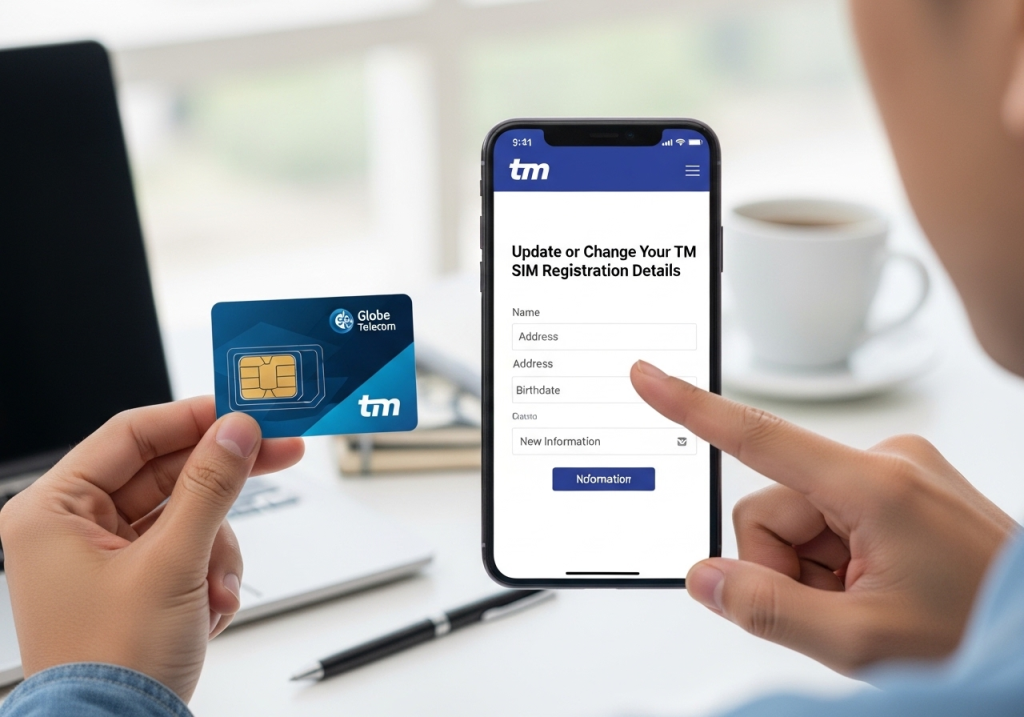
Why You Need To Update TM SIM Information
There are many reasons why you may need to change your TM SIM registration details:
1. Change of Name
- If your name has changed due to marriage or legal reasons, you must update it.
2. Change of Address
- If you moved to a new home, your address should be updated.
3. Wrong Information
- Sometimes users enter incorrect details during registration.
4. Expired or Updated ID
- If your ID has expired or you have a new one, update your records.
5. Security Reasons
- Correct information helps protect your SIM from misuse.
Read also: Stop Spam & Scam Texts On TM SIM
What Information You Can Change
You can update the following details in your TM SIM registration:
- Full Name
- Residential Address
- Date of Birth
- Valid ID Details
- Nationality
- Selfie Verification
You cannot easily transfer SIM ownership to another person online. For that, you may need to visit a physical store.

Required Documents For Updating TM SIM Information
You must prepare the following:
Valid Government ID
Examples:
- Passport
- Driver’s License
- National ID
Selfie Verification
- Must be clear
- Must match your ID
- Should be recent
Special Case: Foreign Nationals
If you are a tourist or foreign user: You need:
- Passport
- Proof of address
- Return ticket (sometimes required)
Important Note:
- Tourist SIM registration is usually valid for 30 days only
Read Also: How To Deactivate TM SIM Card Online
Methods To Change TM SIM Registration Information
There are three main ways to update your details:
- Online Portal
- Mobile App (GlobeOne App)
- Physical Store Visit
Let’s explain each method step by step.
Using Online Portal
This is the easiest and fastest method.
Step-by-Step Process
Step 1: Visit the Official Website
Go to the official TM SIM registration portal.
Step 2: Enter Your Mobile Number
Type your TM mobile number carefully.
Step 3: Verify Using OTP
You will receive a One-Time Password (OTP) on your number.
Enter the OTP to continue.

Step 4: Access Your Profile
After verification, your existing SIM registration details will appear.
Step 5: Click on Edit Option
Select the “Edit” or “Update Information” button.
Step 6: Update Your Details
Now change the information you want, such as:
- Name
- Address
- ID information
Make sure everything matches your official ID.
Step 7: Upload Valid ID
Upload a clear image of your government-issued ID.
Step 8: Upload Selfie
Take a fresh selfie for verification.
Step 9: Submit Your Request
Click on submit and wait for confirmation.
Step 10: Wait for Confirmation Message
You will receive a message confirming your update.
Important Tips for Online Method
- Use a stable internet connection
- Make sure images are clear
- Image size should not exceed 2 MB
- Try again after 15–30 minutes if the system is busy
Using Mobile App
You can also use the GlobeOne app to update your details.
Steps to Follow
Step 1: Download and Open App
Install the GlobeOne app on your phone.
Step 2: Login to Your Account
Enter your TM number and verify with OTP.
Step 3: Go to Account Settings
Find the SIM registration or profile section.
Step 4: Click Update Information
Select the option to edit your details.
Step 5: Enter New Details
Update your name, address, or ID information.
Step 6: Upload Documents
Upload your valid ID and selfie.
Step 7: Submit Request
Click submit and wait for confirmation.

Benefits of Using the App
- Easy to use
- Quick updates
- Available anytime
- No need to visit a store
by Visiting a Store
If online methods do not work, you can visit a physical store.
When Should You Visit a Store?
- If the website is not working
- If you cannot upload documents
- If you want to change SIM ownership
- If your account has issues
Steps at the Store
- Visit the nearest Globe Store
- Bring your valid ID
- Request SIM registration update
- Fill out the required form
- Submit your documents
- Wait for staff confirmation
What Happens After Updating?
After successful update:
- You receive confirmation SMS
- Your SIM stays active
- Your data becomes correct in system
Always keep that confirmation message safe.
Read Also: How To Convert Physical TM SIM To eSIM
Why Accurate SIM Registration is Important
Let’s understand in simple way. If your SIM is not updated:
- It can be blocked anytime
- You may lose your number
- You cannot use services properly
Correct registration gives you:
- Security
- Smooth usage
- No service interruption
Can You Change SIM Ownership?
This is a common question. Changing SIM ownership is not simple. It usually requires:
- Legal documents
- Visit to physical store
- Both old and new owner presence
So for ownership change, visit the store directly.

Read Also: How To Transfer Or Convert TM Load To GCash
How Long Does It Take?
- Online update: Few minutes to a few hours
- App update: Instant or same day
- Store visit: Same day processing
Sometimes delays can happen if the system is busy.
Important Tips Before Updating
Always follow these tips:
1. Use Correct Information
- Make sure your details match your ID exactly.
2. Use Clear Photos
- Blurry photos can cause rejection.
3. Stable Internet
- Use good internet or mobile data.
4. Try Again if System Busy
- If the system is slow, wait 15 to 30 minutes.
5. Keep Your SIM Active
- Do not remove your SIM while updating.
Read Also: How To Pasaload In TM
Common Problems and Solutions
Problem 1: OTP Not Received
Solution:
- Check your signal
- Wait a few minutes
- Try again
Problem 2: Website Not Loading
Solution:
- Use mobile data instead of WiFi
- Try at a different time
Problem 3: Upload Error
Solution:
- Reduce image size
- Use clear photos
Problem 4: Details Not Updating
Solution:
- Make sure your info matches your ID
- Try again after some time
TM SIM Support Contact Details

- 808 → Call from your TM SIM (free and easy)
- +63 2 7730 1000 → Call from landline or other network
Note: If your SIM update is not working, just dial 808 like calling a friend. A support agent will guide you.
Read also: How To Update TM SIM Registration Details
FAQs
Conclusion
Updating your TM SIM registration information is very important to keep your number active and secure. Incorrect details can cause SIM deactivation, service issues, or even loss of access. By using the online portal, mobile app, or visiting a store, you can easily update your information without any difficulty. Always make sure your details match your valid ID and upload clear documents. Following the correct steps and tips will help you avoid common errors. Keeping your SIM information updated ensures smooth usage, better security, and full access to all TM services without interruption.